Thursday, 26 January 2012

Charge Your Gadgets/Mobile phones with Water !!!!

Hello Friendz.......

I think that all of us have those mobile battery chargers for our cellular phone, in case we need that extra bit of juice. The problem is you have to remember to charge such devices, or you will be really screwed when you need them.


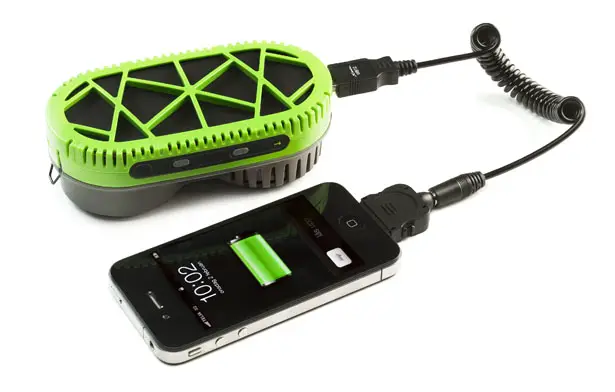
Powertrekk is an external USB charger that comes equipped with a fuel cell that can be used to power a device hooked up to it by just adding water.

If you've got money to burn and want to see an amazing feat of chemistry every time you charge your phone, the PowerTrekk might be for you. A fuel-cell charger  that converts water into enough electricity to charge a phone, the bright green Powertrekk looks like an environmentalist's renewable energy dream....:))

The Powertrekk is designed for USB powered devices, and you can use your USB charger on your mobile device for aiding in the charge.

Unlike solar chargers, fuel cell power is reliable and quickly generated. The speed of charging is not impacted by weather or solar position. Furthermore, there is no power degradation like there is with batteries.PowerTrekk is portable fuel cell charger  which myFC will going to showcase at CES 2012. PowerTrekk is both a portable battery pack and fuel cell, intended for people who spend time away from the electricity grid. PowerTrekk provides instant power anywhere to electronic equipment such as cell phones, GPS-devices and cameras.

I am sure that you are seeing the benefits of the PowerTrekk. I wonder if this company should use the slogan: “the last mobile charger that you will ever need to buy”.

The PowerTrekk charger will land in stores by May or June this year for a price between $250 and $300 dollars. For a new cartridge, you will have to spend $4.

For more information visit Official site Here.


Images:-


If you like this Post then you can buy me the product (PowerTrekk)...:p

Friday, 20 January 2012

How to Use Multiple Facebook Accounts in Google Chrome

No one can deny the fact that Facebook has been an important part of our commercial and professional life. We have many Facebook Accounts to access on but we cannot use them in a single browser. We mainly use a single preferred browser for all our purposes. If you have been a regular user of Google Chrome and would like to use  Multiple Facebook Accounts in Google Chrome, then it's quite easy process and it's just like 123 and go. 


How to Use Multiple Facebook Accounts in Google Chrome


This trick does not requires any sort of softwares installed or it's a hard task to do. By the way, it is an inbuilt and a great feature already present in Google Chrome. 


How to Use Multiple Facebook Accounts in Google Chrome:

  • Firstly open Google Chrome and login into your first Facebook Account.
  • Then right click on the Facebook home link present at the top left corner and click on Open link in incognito window.


How to Use Multiple Facebook Accounts in Google Chrome

  • That's all, you are done! Now a new window will appear asking you to login into your Facebook account. 

So, it is really simple in Google Chrome to do so! 


Hope you find this post interesting!
Kindly share your views via comments on "How to Use Multiple Facebook Accounts in Google Chrome"!!

Wednesday, 18 January 2012

Spooftooph: The Bluetooth Spoofer


Spooftooph dirancang untuk mengotomatisasi spoofing atau kloning perangkat Bluetooth Nama, Kelas, dan Alamat.
Kloning informasi ini secara efektif memungkinkan perangkat Bluetooth untuk bersembunyi di situs biasa. Bluetooth
perangkat lunak pemindaian hanya akan mencantumkan salah satu perangkat jika terdapat lebih dari pada perangkat di kisaran saham yang sama
informasi perangkat saat perangkat berada dalam Discoverable Mode (khususnya Address yang sama).
Yah biasanya kebanyakan dari kita tidak pernah berniat untuk mengaudit susunan Bluetooth dalam organisasi apapun. Tapi alat ini
bisa menarik untuk digunakan di lingkungan di mana perangkat Bluetooth yang telah dipasangkan dengan
penting hardware.
so gunakan ja brooo..hihiihihi

Download spooftooph

Use Ready Boost to Speed up your PC performance


Use Ready Boost to Speed up your PC performance
Ready Boost is a great feature by Windows to Speed up your PC performance using compatible pen drives. However, it boosts your system speed as it works as a Virtual RAM for your Computer, thereby Improving PC performance. It's just like using your Pen drive/SD Card/Flash drive as RAM. It is a feature that every Windows user should take benefit of!!!


There are some requirements of your PEN/FLASH drives too-

  • It should have at least 1 GB storage capacity.
  • It should have 512 MB free data.

Steps to Enable Ready Boost:-


  • Plugin your pen drive into your USB port. A dialog box will pop-up asking you what you want to do with your pen drive.


  • To speed up your system using ready boost,Click on Speed up my System using Windows Ready Boost.


Use Ready Boost to Speed up your PC performance


  • A new dialog box will appear showing you the Ready Boost Properties. You can even configure the Space of your pen drive you want to use to increase system speed.


  • Click on Apply and hit OK.


Use Ready Boost to Speed up your PC performance


Now you will experience increase in your PC Speed.

Fixit: Solve your Microsoft Computer problems online


Hii Friends....I hope you all are fine. Today am back with a very useful trick for you. Well, Today am back with an application named as Fixit. Fixit is an online program developed by Microsoft to help all its users to solve their various problems and issues online. It will provide all the categories. It will easily solve your purpose.


Read More...


                                           GO TO FIXIT FROM HERE


Microsoft has made it very easy for all the users to fix their problems online. So it will show you the below categories. Just see the tutorial below.


So, here are the categories. Select any of the category that you want to troubleshoot with.


Here you have selected the category that you want to troubleshoot with. After selecting the  problems,it will show me some below helpful ways to solve my problem....


Now any of the following can the solution and helpful to troubleshoot ant kind of problem.
So, I got my solution using Fixit. Did You????

Trick to extend trial period of any software and use it forever


Hii Friends.....I hope you all are fine. From the past few days, I am looking something amazing for my readers and finally got it. A very interesting trick. As we all know that "UNFORTUNATELY" free softwares run only for some trial period. After that we need to purchase them. Now I will tell you the trick to expand that software's trial period and you can use that same software forever at "ZERO COST HIT".......


Read More...


"TIME STOPPER" is an amazing software and a small program which stops the limited time period for any of the software executable file and and allows to use the extended version of that program. However,I will tell you the method and the tutorial how to perform with this trick.


Follow the below tutorial to use this trick:


  • Download Time Stopper 3.5 Windows.(1.25 MB)
  • After downloading this RAR file,Extract it, and install it. After extracting it,run this program. You will see something like below:


  •                       Just Observe the image and then follow the steps below!!

  • Firstly choose the software that is going to be expired and You want to use it again as a trial period.
  • Just click the BROWSE.Now you have to choose a valid .exe application of your program that is mostly located in C:/Program files.
  • Now you have to choose a date,well here you have to choose a date like two days before it is going to be expired. And now your software will be again extended from 30-90 days or anything else depending upon your software.
  • Now, Give a new name to the shortcut of extended trial version of the program  and simply click on "CREATE DESKTOP SHORTCUT"....
  • That's it!!! Enjoy using the trial application for free!!!!

Note: This is an amazing trick. But in this trick we are not using the trick to extend the trial period of the software forever. This program just extends the trial limit of any software by changing its installation date....

Refresh PC: Fix random errors in your computer

Hii Friends.....I hope yo all are fine. You may face many random errors on your computer.To solve them,you may need to format your computer. So you do not need to do so.However, Today am going to tell you about a utility that will solve such computer bugs easily.


Read More...


"REFRESH PC" is a small utility that allows free restore all your default settings and will fix many random errors on your system.Refresh PC comes with a very user-friendly interface and it is much easy to use. It also creates a system restore point and using that you can later on undo various changes made by Refresh PC if necessary.

                                
                        DOWNLOAD REFRESH  PC HERE                


After installing this software, You need to click on Refresh my Windows Settings. It will start working on your system. It will restore the default settings for various essential services and system specific keys from the Windows Registry and also it will clean the temporary folder.

As soon as it completes the process of restoring your windows default settings, it will ask you to reboot your system. Just reboot your system, and you will get rid of many random errors you were facing previously!!!

Top Tips to Improve System Speed

Hii Friends....I hope you all are fine. However, we all need to enhance our system speed. So, Today am going to tell you about some General Tips to Increase System Speed. These tips tips will help you to gain a better experience. These tips will be useful for you on all Windows Platforms.


Read More...


Top Tips to Improve System Speed:
  • Refresh the desktop after closing any applications. This will also remove help to remove any of the unused files from the RAM.
  • Do not set any large size images as a wallpaper on your Computer.
  • Empty your recycle Bin regularly.
  • Uninstall unwanted programs on your Computer.
  • Defragment your hard drive once every month. This will free up a lot of space on your hard drives.
  • Delete temporary Internet files regularly.
  • Always use a classic theme.
  • Keep your Operating System (Usually C) drive empty as much as you can. Install softwares,games,programs,etc. in a different location. This will help you to increase your system speed a lot.
  • Use a good Antivirus Program. It will ensure your computer to protect itself against viruses,worms,etc.
  • Do not fill your desktop full of shortcuts. Try to use as less icons on your desktop as much you can. Each Shortcut uses 500 bytes of your RAM.
  • Protect your CPU from dust. Entering of dust may affect the cooling fan of your CPU and cause your cooling fan to jam and slow down. Gradually it will slow down your Processing Speed.                                                                              

Trick to convert Videos using VLC Media Player

Hii Friends....I hope you all are fine!! As most of us know VLC Player is an awesome media player that supports almost all Video Codecs. But most of the people are unaware about it's amazing feature that this amazing utility can also convert videos.  So, it is a multi-purpose media player. This will convert videos easily in your desired format. If you do not have this amazing utility, Download it from here.


Read More....


Steps to Convert Videos using VLC Media Player:


  • Open VLC Media Player.
  • Now select Media Option.
  • Select Convert/Save option from the drop down menu.


  • Now a new pop-up window will occur. Click on Add button located under the files to select the that you want to convert.


  • You can also add subtitles which will be hardcoded to the converted file.To add subtitles check the Use a subtitle option.(Optional)
  • Now Click on Convert/Save button. You will see another window.
  • Select the Destination File and ProfileConversion Format ).


  • Click on start button to begin conversion.
  • And now the video Conversion will start and you will see something like streaming!!
      •  
Now you have learnt to Convert videos using VLC Media Player!!

Trick to use use Mobile Camera as Webcam

Hii Friends....I hope you all are fine. In today's 21st century, we all are surrounded by 
various devices and one of them is Webcam. It is a device that heps to do video chat with various people all around the world. So,In any conditions,if we need a web camera, we need to purchase it separately. And nowadays everybody has a Mobile Phone. So, today am going to share a Interesting trick to use a Mobile's Camera as Webcam.


Read More...


However,It's better to use your Mobile Camera as a Webcam rather than buying a new one. However, This trick supports only Symbian and Windows Phones. This application is free to download and use.

Smartcam is an application by which you can use your camera phone as an effective video capture device.


To use this application, you must install this application on your on your mobile as well as your computer.

Make sure that you have Bluetooth in your Computer as well as mobile.

Now firstly download this application on your Phone as well as Computer
and then connect them via Bluetooth. Now enjoy using Webcam.

It is better if you have Bluetooth in both of your devices because if you have Bluetooth then you can position your Mobile in your desired manner while doing a video chat.

However, this application is mainly created to support Nokia Phones. Specifically 
 Symbian Phones and Windows Phones including Nokia Series 60 phones including both S60 v2.0 and S60 v3.0devices  and many more phones.

Trick to Unlock Hidden Themes in Windows 7

Hii Friends....I hope you all are fine. As we all know that Windows 7 has excellent themes. But many of us do not know that Windows has some hidden themes.  As the themes that are visible to us are country specific that is according to our  demographic location. And rest of the themes are hidden in our C drive or where our windows has been installed. Today am going to tell you the trick to unlock those hidden themes. If we enable these hidden themes then we can use them.

Read More...


Steps to unlock hidden themes in windows 7:-


  • Please make sure that you can view hidden files and folders. If not you can view it by going to Control Panel<Folder Options<View<Check on Show Hidden files and folders<Apply<OK
  • Now make a click on the address bar and paste the given below command:-
    C:/Windows/Globalization/MCT and hit enter. A new folder will appear.
[Do not try to go to this MCT location manually. These MCT files cannot be viewed by going to this folder manually as MCT cannot be viewed even if view hidden folders option is enabled as it is a super hidden directory. So it is compulsory to go to this location via address bar.]

  • Now, In this new folder, you will see folders named as MCT-AU,MCT-CA,etc. where these AU,CA,etc refer to country codes.
  • Inside each MCT folder, you will see a theme folder.
  • Click on that theme folder. You will see the country code of that Particular MCT folder.
  • Double Click on it!! Yippee!!! You have unlocked that theme!!! 
  • Now Right click on desktop and click on Personalize to use those themes!!! 
Enjoy!!

Trick to Format an Unformatable Pen drive

Hii Friends...I hope you all are fine. Today am going to share a very useful trick. As sometimes we are unable in formatting our Pen drives. As it may be affected by virus (mainly autorun) or any other problem, so we cannot format it by using the quick format feature. So today am going to share a useful trick-"How to format an unformatable pen drive using DOS command"!!! 


Read More...


Steps:

  • Insert your pen drive in the USB port.
  • Go to run.
  • Type the following command
    format h: and ht enter
    [Here h: refers to the removable disk hard drive letter]
  • It will ask you that you want to format or not. Y or N !!! Hit Y and press enter.
  • You are done!!! Enjoy!!!

Trick to Password Protect Microsoft Word 2007 Files

Hii Friends...I hope you all are fine. Mainly we prefer Microsoft Word to create documents!! But Sometimes we have some documents saved in our computer that we want avoid from other people to access them. Such as Office reports or college projects,notes,etc. However, Microsoft word 2007 has a useful security feature to password protect our private documents. So today am going to share a very useful trick "Trick to password protect Microsoft Word 2007 files"!!


Read More...


Steps to Password Protect Microsoft Word 2007 files:


  • Open any document that you want to password protect.
  • Click on the Microsoft Office button present at the top left corner of the window.
  • Click on Save as option.


  • Now a new window will appear. Click on Tools option at the bottom of the window and select General Options.


  • Now again a new window will appear saying General Options. You will see the top two options- Password to open and Password to Modify. You can select either one or both options.
    The first is Password to open -It will ask this password every time when someone tries to open  the document. If one tries to view the document, he needs to enter this password.
    The second is Password to modify- It will ask this password every time when someone tries to modify the document that is tries make any changes in your document. If one tries to make changes in the document, he needs to enter this password to save the changes. 


  • Give your document a password of your wish and click on OK button.
  • That's all!!!


Now your Word document is protected from unwanted eyes!!!

Trick to Password Protect ZIP files using WinRar

Trick to Password Protect ZIP files using WinRar
Hii Friends....I hope you all are fine. As we all know that, WinRar is a powerful Archive Manager that can be used to create archive and extract (rar,zip,etc..) files.  Well, it has one awesome in-built feature which helps to encrypt your files and password protect them. You can easily use this feature by following some simple steps.


Steps to Password Protect your ZIP files using WinRar:-


  • Right click on the folder that you want to password protect and click on Add to archive.


Trick to Password Protect ZIP files using WinRar

  • In the new pop-up window, select the Advanced Tab.And click on Set Password.


Trick to Password Protect ZIP files using WinRar

  • Now a menu will open asking you the password.Enter your desired password and click on OK.


Trick to Password Protect ZIP files using WinRar


You are done!!
You have password protected your ZIP file!!!

How to Extract Text from any Image Online

Hii Friends....I hope you all are fine. It may happen many times that you come across such images that contains awesome/useful  Quotes/content and you may need them in the form of text but you are unable to type them or write them as they  might be too lengthy. In such a case, there is a free online tool which comes to rescue and will help you to do this job for you easily.


Free OCR is an online tool which will help you to extract the text from any image easily. It will do this work in a few moments and free of cost.
The process is pretty simple:-


(1) You need to go to the site

(2) Upload your text image.
(3) Enter the captcha.
(4) Click on Send File.
(5) Wait for few moments.
(6) Yipee!! The text from the image is in front of you!!
(7) Now You can copy and use your desired text!!


Now enjoy using this Free OCR online tool to extract text from any image!!!

Trick to Copy Files with Super Fast Speed in windows 7, Vista and XP

How to Copy Files with Super Fast Speed in windows 7, Vista and XP
Hey friends...I hope you all are fine. As we all know that our default tool for copying and moving files is too slow . Sometimes if you are moving large files, you just get annoyed by the time it will take. Even it happens that the computer hangs if you are moving multiple files at the same time. And this delay is more annoying when you are using Windows Vista or Windows 7. But there is a solution to get rid of this. There are some awesome third party tools which are much better then the default MS copying tools as they are capable of copying files with a super fast speed.


There are many third-party softwares that can do this job for you. But here we are providing the top copying Managers that are much faster,easy to use,and free of cost.
I have found a lot but I am going to provide you the best ones.

_______________________________________________________________________________

Super Copier 


Super Copier is the Best super fast speed copier I have ever seen. I am currently using this amazing utility. It is very small and a Light-weight Program. It will run in the system tray and does not eats up your much memory and CPU usage. You can even Pause,resume, schedule you copying processes. Super copier helps a lot in increasing your copying speed.
Whenever any error occurs during the copying process, it will show you the actual reason behind the error.

Super Copier


TeraCopy


TeraCopy is also one of the most used copy manager.  The best part of this utility is that it can resume file transfer even if any error occurs during the copying process. When you install it, it will automatically integrate into your Right click context menu.


TeraCopy


So, I shared the top fast copiers and shared my views about them with my own experience. You can also know about some other copiers like:

Copy Handler

Talent Copy

Extreme Copy 

Trick to download torrents using IDM

Downloading Torrents with High Speed is a great need nowadays. As torrent files are a better alternative to download various games,softwares,movies,etc. Well, Even I sometimes feel that torrents are very slow to download files as compared to a normal download speed. The speed is too slow in any torrent files down-loader. So, I found a way to download torrent files using IDM. It is true that now you can download torrents using IDM. If you are not using IDM, them download IDM 6.07 Build 14 (latest version) of IDM from HERE.


Follow the steps to Download Torrent files using IDM:


(1.)Firstly Grab your torrent from www.torrentz.eu . Download the torrent file (.torrent) extension file of your desire.

(2.)Now after downloading the (.torrent) file, go to this website www.torcache.net
Now upload the torrent file that you had just downloaded and click on cache button.

(3.)It will show you a new generated link of your torrent file.

(4.)Copy that new link.

(5.) Now go to www.torrific.com and create a new account there. After signing up, Login into your Account.


(6.)In the text field, paste the link of the new torrent file that you had copied in Step 4 and Click on GET.

(7.) You will see all the torrent files that are present in that torrent. Now click on Initiate Bittorrent Transmission.

(8.) Now all the files have been ready to be downloaded. Click on any file that you want to download.

(9.) A new pop-up window of IDM will open.

(10.) Click on Start Downloading.


So, this trick helps to download torrents with high speed. Well, If you are having a slow torrent download speed, I strongly recommend you to use this software.

So, Enjoy downloading torrents at high speed using IDM.

SpeedyFox: Firefox Speed Booster


SpeedyFox: Firefox Speed Booster
Hey friends....I hope you all are fine. Are you are pissed off with the slow Firefox speed??? Then Today am going to provide you a very useful tool for you that is SpeedyFox, which will help you to get rid of slow Firefox Speed. SpeedyFox is a small utility which compresses all your saved data and thereby, enhances your Firefox speed to a great way.  It compresses all the data that makes Firefox heavier and eats up its speed. It will compress it and will make it faster and smoother.


Features of Speedyfox:-


  • It will boost your startup time by 3 times.

  • Boost your browsing speed.

  • Quick Operation with Cookies.


      SPEEDYFOX FREE DOWNLOAD FOR WINDOWS

  • After Downloading SpeedyFox, Just run it.
  • Check mark on Run Firefox After Optimization.After that, Click on Speed up my Firefox. {Make sure that Firefox is closed}
SpeedyFox: Firefox Speed Booster

  • When it will be optimized, the Firefox window will open and you will see a Sudden increase in your Browsing Speed!!Enjoy!!!!!!

How to FIX Task Manager in Windows XP

How to FIX Task Manager in Windows XP

Task Manager is an important in-built Program to manage all the processes going on your computer. Even when your Computer hangs, you need to open task manager to end that process. As such, Task Manager helps to start and end program even forcefully. Task Manager can also be used to manage RAM Usage by CPU and CPU performance. But sometimes, Some Trojans and Viruses block Task Manager and you get an error like below one!!!!


How to FIX Task Manager in Windows XP:


  • Open Notepad.

  • Copy/Paste the below code in Notepad.

Windows Registry Editor Version 5.00
[-HKEY_LOCAL_MACHINE\SOFTWARE\Microsoft\Windows NT\CurrentVersion\Image File
 Execution Options\taskmgr.exe]


  • Save this file with the name TaskManager.reg on your desktop.

  • Now open this file.

  • It will ask you to save this data in the registry.
  • Click on Yes!!!


You're done!!!


So Friends, Hope you find my article useful!!
Kindly share your views via comments on "How to FIX Task Manager in Windows XP"!!!

Tricks to Increase your Internet Speed


A Slow Internet Connection really costs time and makes you feel annoying. Many people ask me the ways to Increase their Internet Speed. However, it's possible to do so to some extent and Make your Internet much better then it was in the past. However, There are some tweaks and softwares that will help you to Increase your Internet Speed.


(1) Speed up your Internet Speed by 20%:


This is the first method to speed up  your internet. This method might be known to most of the people. But still I want to share this with you!! However, this method help you to increase your Internet Speed by 20%. Just follow the steps below:


Go to start.
Go to run.
Type gpedit.msc and hit enter.
Expand Administrative Templates.
Then Network.
Then QoS Packet Scheduler.
A new list will appear. Click on Limit Reservable Bandwidth.
Just Disable it.
Click on Apply.
Hit OK. You're done!!
Now just restart your Computer. You will experience a change in your Speed.


(2) Free Accelerators to Speed up your Internet:

In this second method, I am providing Internet Accelerators to Speed up your Internet. However, these are some small utilities that will tweak and optimize your internet settings for you, and thereby, Speeding up your Internet.

Ashampoo Internet Accelerator

This utility comes with an awesome tool that will optimize and tweak your internet settings within a single click. It also has a feature to test your Connection speed.

Download Ashampoo Internet Accelerator 3 Here
Register for a Free trial for Ashampoo Internet Accelerator from here

You can also try other accelerators like:

Speed Connect 
Internet Accelerator


(3) Use TCP Optimizer to Boost Speed

TCP Optimizer is a Small tool helping you to optimize and tune up your Internet Speed.

                                        Download TCP Optimizer


(4) Ways to Boost Speed in Firefox


You can use Speedyfox to increase your Internet Speed.
You can view our one of our previously posted article for this.

Speedyfox: Firefox Speed Booster

And you can even Improve your youtube performance in Firefox and all other browsers.
You can view our one of our previously posted article for this.

Improve youtube performance in Firefox and all other Browsers

You can even improve your Firefox Internet speed to a great extent by making some changes into it.

Get this method here.

(5) Some tips from my side:

  • Use IDM to boost your Downloading Speed.
  • Try Downloading torrents using IDM.
  • Use a Good Anti-virus in your Computer.
  • Remove  unwanted add-ons,softwares,unwanted files from your computer.
  • Update your drivers periodically.
  • Keep a good maintenance of your Computer.


I strongly recommend you to upgrade your broadband Plan to experience a faster and more stable Speed.

So, I hope this article was useful to you!!!
Please share your views via comments on "Tricks to Increase your Internet Speed"!!!